Git & GitHub Core Concepts
Git has 6 building blocks: repositories (project folders), commits (snapshots), branches (parallel timelines), the staging area (what goes in the next commit), remotes (cloud copies), and merging (combining work). Master these and you can use any Git workflow.
Concept Map
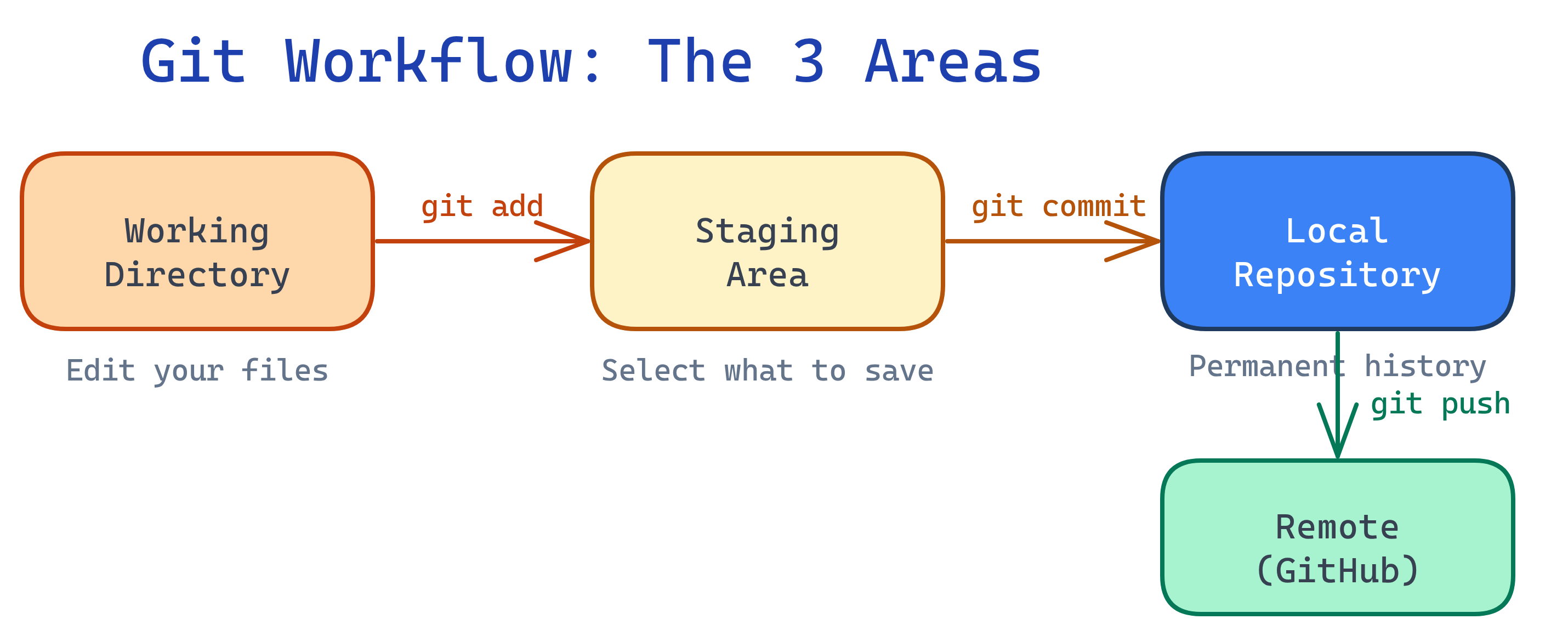
Here's how the core Git concepts connect to each other — from your working directory all the way to the remote repository on GitHub.
Explain Like I'm 12
Think of Git like a video game with save points:
- Repository = your game save folder
- Commit = pressing "save" — a snapshot you can always go back to
- Branch = starting a new game path without overwriting your main save
- Staging = choosing which items to include in your next save
- Remote = uploading your saves to the cloud so friends can play too
- Merge = combining two game paths back into one
Cheat Sheet
| Concept | What It Does | Key Commands |
|---|---|---|
| Repository | A folder tracked by Git — contains all files + history | git init, git clone |
| Commit | A snapshot of staged changes with a message | git commit -m "msg" |
| Branch | A parallel line of development | git branch, git checkout -b |
| Staging Area | Selects which changes go into the next commit | git add, git status |
| Remote | A cloud copy of your repo (e.g., on GitHub) | git remote add, git push, git pull |
| Merge | Combines changes from one branch into another | git merge, git rebase |
The Building Blocks
1. Repositories
A repository (repo) is a project folder that Git tracks. It contains your files plus a hidden .git/ directory that stores the entire history of changes.
# Create a new repo from scratch
git init my-project
cd my-project

# Or clone an existing repo from GitHub
git clone https://github.com/user/repo.gitgit clone, you get the full history — every commit ever made. That's the "distributed" in distributed version control.2. Commits
A commit is a snapshot of your code at a point in time. Each commit has a unique SHA hash (like a1b2c3d), a message, an author, and a timestamp. Commits are immutable — once created, they never change.
# See what changed
git status
git diff

# Stage specific files, then commit
git add src/app.js tests/app.test.js
git commit -m "Add user authentication endpoint"

# View commit history
git log --oneline
# a1b2c3d Add user authentication endpoint
# e4f5g6h Initial project setup3. Branches
A branch is a pointer to a commit. The default branch is main (formerly master). When you create a new branch, you're creating a new pointer — the files aren't copied. Branches are cheap and fast.
# Create and switch to a new branch
git checkout -b feature/login-page

# Or the modern way (Git 2.23+)
git switch -c feature/login-page

# List all branches (* = current)
git branch
#   main
# * feature/login-page

# Switch back to main
git switch mainHEAD is a special pointer that tells Git which branch (and commit) you're currently on. When you switch branches, HEAD moves.4. Staging Area (Index)
The staging area sits between your working directory and the repository. It lets you choose exactly which changes to include in the next commit — even individual lines from a file.
# Stage all changes
git add .

# Stage specific files
git add src/login.js src/auth.js

# Stage parts of a file (interactive)
git add -p src/login.js

# Unstage a file (keep changes in working directory)
git restore --staged src/login.js5. Remotes
A remote is a copy of your repository hosted somewhere else — usually GitHub. The default remote is called origin. You push your local commits to the remote and pull others' commits from it.
# See your remotes
git remote -v
# origin  https://github.com/user/repo.git (fetch)
# origin  https://github.com/user/repo.git (push)

# Push your branch to GitHub
git push origin feature/login-page

# Pull latest changes from main
git pull origin main

# Fetch without merging (just download)
git fetch origingit pull = git fetch + git merge. If you want to review changes before merging, use git fetch first, then inspect with git log origin/main.6. Merging
Merging combines changes from one branch into another. Git tries to auto-merge, but if both branches changed the same lines, you get a merge conflict that you must resolve manually.
# Merge feature branch into main
git switch main
git merge feature/login-page

# If there's a conflict, Git marks the file:
# <<<<<<< HEAD
# your changes
# =======
# their changes
# >>>>>>> feature/login-page

# After resolving conflicts:
git add resolved-file.js
git commit -m "Merge feature/login-page into main"The Three Areas of Git
Understanding the flow between these three areas is the key to mastering Git:
| Area | What Lives Here | How It Gets Here |
|---|---|---|
| Working Directory | Files you see and edit | Editing files, git checkout |
| Staging Area | Changes queued for next commit | git add |
| Repository (.git/) | Committed snapshots (permanent history) | git commit |
Test Yourself
What's the difference between git add and git commit?
git add moves changes to the staging area — it selects what will be in the next commit. git commit takes everything in staging and creates a permanent snapshot (commit) in the repository. You add first, then commit.What's the difference between git fetch and git pull?
git fetch downloads new data from the remote but doesn't change your working files. git pull is git fetch + git merge — it downloads AND integrates the changes into your current branch. Fetch is safer because you can inspect before merging.What does HEAD point to in Git?
How is a Git branch different from copying files into a new folder?
What are the three areas in Git and how do changes flow between them?
git add, (3) Repository — where committed snapshots are permanently stored via git commit. Flow: edit → add → commit.