Core Concepts of Power Apps
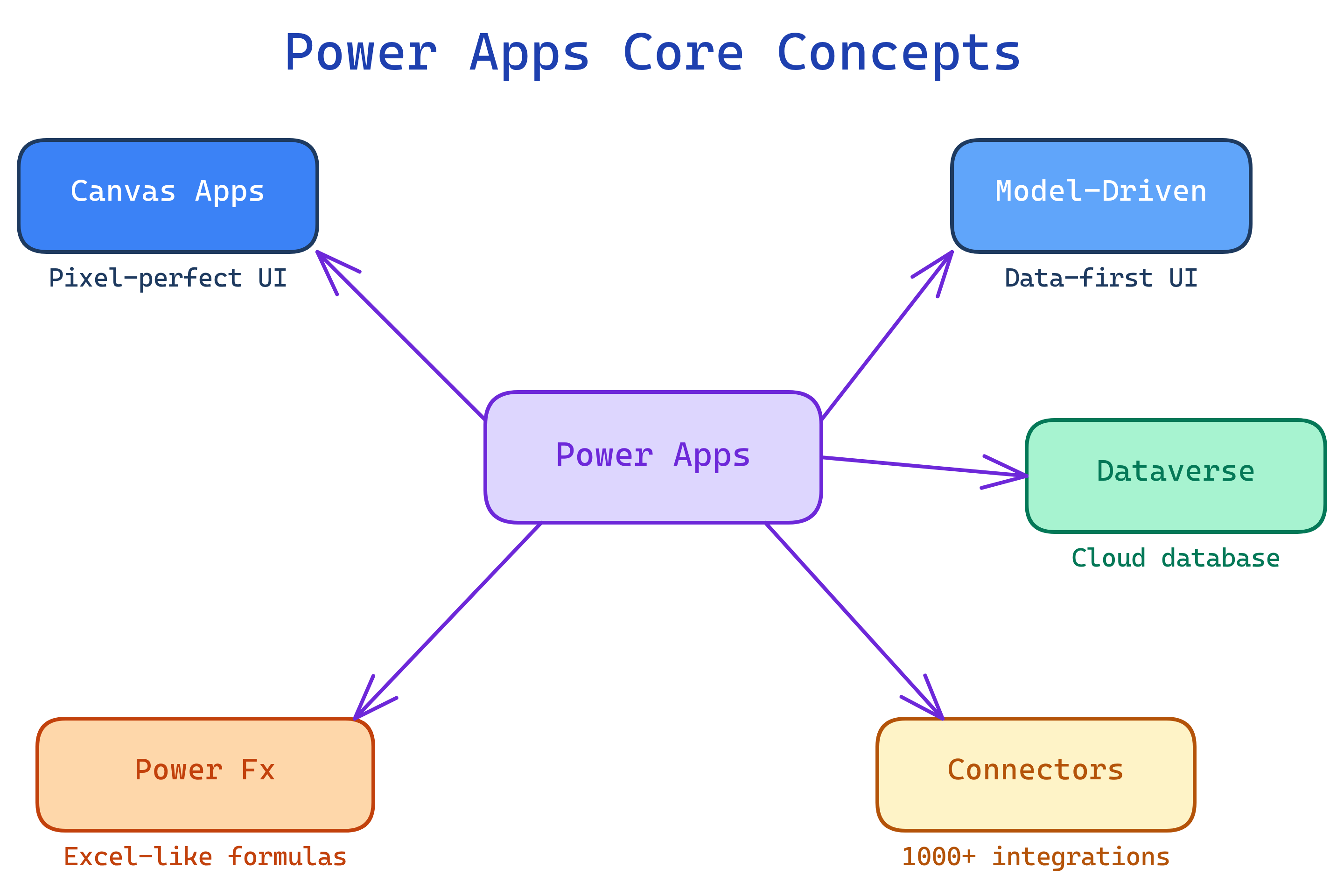
Power Apps has 5 building blocks: Canvas Apps (pixel-perfect UI), Model-Driven Apps (data-first UI), Dataverse (the data platform), Connectors (links to external data), and Power Fx (the formula language). Canvas for custom UX, Model-Driven for complex data apps.
The Big Picture
Explain Like I'm 12
Canvas Apps are like building with LEGO — you place each brick exactly where you want. Model-Driven Apps are like a pre-built LEGO set — the structure is determined by the instructions (your data model), you just customize the colors. Dataverse is the box that holds all your LEGO pieces organized. Connectors let you borrow pieces from your friend's box (SharePoint, Excel, SQL). Power Fx is the instruction manual telling the pieces how to behave.
Cheat Sheet
| Concept | What It Does | When to Use |
|---|---|---|
| Canvas App | Drag-and-drop UI builder with full design control | Custom UX, mobile-first, non-Dataverse sources |
| Model-Driven App | Auto-generated UI from Dataverse data model | Complex data, relationships, business processes |
| Dataverse | Cloud database with security, relationships, APIs | Any app that needs structured, secure data |
| Connectors | Pre-built integrations to 1000+ services | Connecting to external data/APIs |
| Power Fx | Excel-like formulas for app logic | Every canvas app formula bar |
The 5 Building Blocks
Canvas Apps — Pixel-Perfect Control
Canvas apps give you a blank screen. You drag controls (buttons, text inputs, galleries, forms, images) onto the canvas and position them exactly where you want.
Key Controls
| Control | What It Does | Common Use |
|---|---|---|
| Gallery | Repeating list of items from a data source | Browse records, search results |
| Form | Edit/display fields from a record | Create/edit data entry screens |
| Text Input | User text entry field | Search bars, form fields |
| Button | Triggers an action on click | Submit, navigate, run flow |
| Dropdown / Combo Box | Pick from a list of options | Filters, category selection |
| Camera / Barcode | Access device camera | Photo capture, barcode scanning |
The 3-Screen Pattern
Most canvas apps follow this pattern:
- Browse Screen — gallery showing all records + search bar
- Detail Screen — display form showing one record's details
- Edit Screen — edit form for creating/updating a record
Model-Driven Apps — Data First
Model-driven apps start with your data model in Dataverse. You define tables, columns, relationships, views, and forms. The UI is auto-generated.
Key Components
| Component | What It Does |
|---|---|
| Tables | Where data lives (like database tables) |
| Views | Saved filters/sorts on a table (like SQL views) |
| Forms | Layouts for creating/editing records (Main, Quick Create) |
| Business Rules | No-code conditional logic on forms (show/hide, set values) |
| Business Process Flows | Guided step-by-step processes (lead → opportunity → close) |
| Dashboards | Overview pages with charts and lists |
Dataverse — The Data Platform
Dataverse (formerly Common Data Service) is the cloud database behind the Power Platform. Think of it as a managed database with enterprise features built in.
- Tables & Columns — structured data with types (text, number, lookup, choice)
- Relationships — one-to-many, many-to-many between tables
- Security — row-level, column-level, business unit-level security roles
- Business Rules — server-side validation and logic
- Calculated & Rollup Columns — computed values without formulas
- APIs — auto-generated REST APIs for every table
- Standard Tables — pre-built tables (Account, Contact, Activity) shared across Dynamics 365
Connectors — Link to Everything
Connectors are pre-built bridges to external services. 1000+ available.
| Type | Examples | License |
|---|---|---|
| Standard | SharePoint, Excel, Outlook, Teams, OneDrive | Included with M365 |
| Premium | Dataverse, SQL Server, Salesforce, HTTP (REST) | Requires Power Apps license |
| Custom | Your own REST API wrapped as a connector | Requires Power Apps license |
Power Fx — The Formula Language
Power Fx is Excel-inspired. If you know IF(), VLOOKUP(), and FILTER() in Excel, you're 80% there.
// Filter a gallery to show only active items
Filter(Products, Status = "Active")

// Look up a related record
LookUp(Customers, ID = ThisItem.CustomerID).Name

// Navigate to another screen on button click
Navigate(DetailScreen, ScreenTransition.Fade)

// Submit a form
SubmitForm(EditForm1)

// Conditional formatting
If(ThisItem.Priority = "High", Red, Black)Test Yourself
Q: What is the difference between a canvas app and a model-driven app?
Q: What is delegation?
Q: What is the 3-screen pattern for canvas apps?
Interview Questions
Q: What are the licensing options for Power Apps?
Q: How do you handle security in Power Apps?
Q: What is a solution in Power Apps?