Process & Service Management
Every running program is a process with a PID. Control them with signals (SIGTERM=graceful stop, SIGKILL=force). Long-running services are managed by systemd (systemctl start/stop/enable). Schedule recurring tasks with cron. Monitor with ps, top/htop, and journalctl.
Explain Like I'm 12
Think of your computer as a school. Every process is a student doing their work. Each student has an ID number (PID). The principal (systemd) makes sure important students (services like the web server) are always in school — if one goes home sick, the principal calls them back. Signals are like announcements: "Please finish up and leave" (SIGTERM) vs "FIRE DRILL! Everyone out NOW!" (SIGKILL). Cron is the school bell — it triggers activities at specific times.
Process Lifecycle
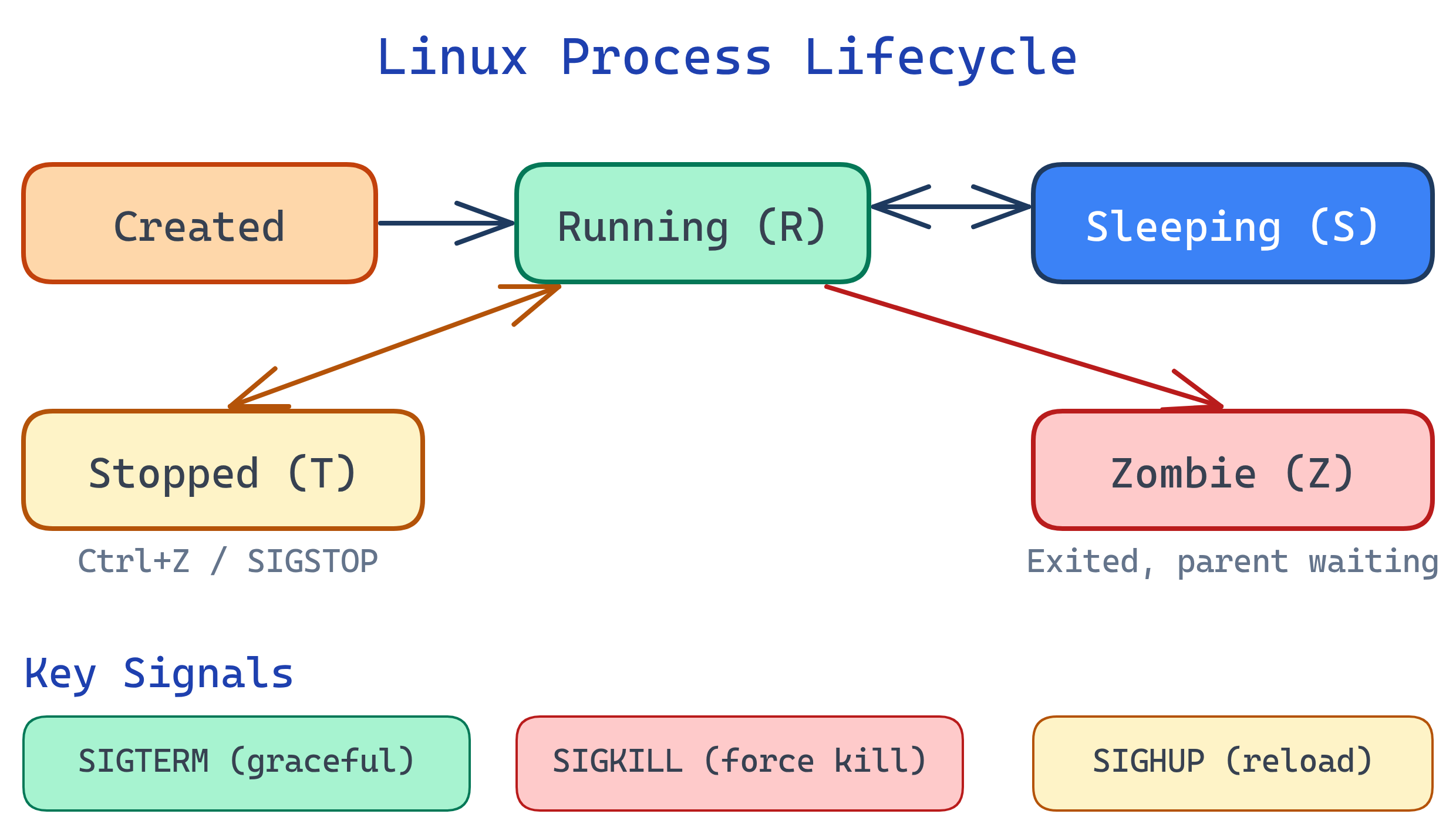
Process Basics
# List processes
ps aux                          # All processes, full detail
ps aux --sort=-%mem | head -10  # Top 10 by memory usage
ps aux --sort=-%cpu | head -10  # Top 10 by CPU usage
ps -ef --forest                 # Tree view (parent-child)

# Process details
# USER  PID %CPU %MEM  VSZ   RSS TTY  STAT START TIME COMMAND
# root    1  0.0  0.1 16944  4840 ?    Ss   Mar28 0:05 /sbin/init

# Interactive monitors
top                             # Built-in (press q to quit, k to kill)
htop                            # Better UI (install: apt install htop)

# Find PID by name
pgrep nginx                     # PIDs of all nginx processes
pidof nginx # Similar to pgrep| STAT | State | Meaning |
|---|---|---|
| R | Running | Currently using CPU or waiting in the run queue |
| S | Sleeping | Waiting for an event (I/O, timer, signal) |
| D | Disk sleep | Uninterruptible sleep — waiting for I/O (can't be killed) |
| T | Stopped | Suspended by signal (Ctrl+Z or SIGSTOP) |
| Z | Zombie | Finished but parent hasn't collected exit status |
wait() on its children. A few zombies are harmless; many indicate a buggy parent process.Signals
Signals are software interrupts sent to processes. The most important ones:
| Signal | Number | Default Action | Can Be Caught? |
|---|---|---|---|
| SIGTERM | 15 | Graceful termination | Yes — process can clean up |
| SIGKILL | 9 | Immediate termination | No — kernel kills the process |
| SIGINT | 2 | Interrupt (Ctrl+C) | Yes |
| SIGHUP | 1 | Hangup / reload config | Yes — many daemons reload |
| SIGSTOP | 19 | Pause process | No — can't be ignored |
| SIGCONT | 18 | Resume paused process | Yes |
# Send signals
kill 1234                  # SIGTERM (default — graceful stop)
kill -9 1234               # SIGKILL (force kill)
kill -HUP 1234             # SIGHUP (reload config)
killall nginx              # Send SIGTERM to all nginx processes
pkill -f "python app.py"  # Kill by command pattern

# Keyboard signals
# Ctrl+C  → SIGINT (interrupt)
# Ctrl+Z  → SIGTSTP (suspend to background)
# Ctrl+\ → SIGQUIT (quit with core dump)kill PID (SIGTERM) first. Give the process 5-10 seconds to clean up. Only use kill -9 (SIGKILL) if it's completely unresponsive. SIGKILL doesn't allow cleanup — open files won't be flushed, temp files won't be deleted, locks won't be released.Job Control
# Background a command
./long-task.sh &           # Start in background (& at end)
# [1] 12345                 # Job number and PID

# Manage background jobs
jobs                        # List background jobs
fg %1                       # Bring job 1 to foreground
bg %1                       # Resume suspended job in background

# Suspend and background
# 1. Run a command
# 2. Press Ctrl+Z (suspends it)
# 3. Type 'bg' (resumes in background)

# Keep running after logout
nohup ./script.sh &         # Immune to SIGHUP (won't die on logout)
# Output goes to nohup.out

# Or use screen/tmux for persistent sessions
tmux new -s mywork          # Create named session
tmux detach                 # Detach (Ctrl+B, d)
tmux attach -t mywork # Reattach latertmux or screen for long-running tasks on remote servers. If your SSH connection drops, the session keeps running. Reattach when you reconnect. This is essential for deployments and long builds.systemd & Services
systemd is the init system (PID 1) on most modern Linux distributions. It manages services (daemons), boot order, logging, and more.
# Service management
sudo systemctl start nginx        # Start now
sudo systemctl stop nginx         # Stop now
sudo systemctl restart nginx      # Stop + start
sudo systemctl reload nginx       # Reload config (no downtime)
sudo systemctl status nginx       # Show status and recent logs

# Boot behavior
sudo systemctl enable nginx       # Start on boot
sudo systemctl disable nginx      # Don't start on boot
sudo systemctl is-enabled nginx   # Check if enabled

# List services
systemctl list-units --type=service              # Running services
systemctl list-units --type=service --state=failed  # Failed services

# View logs (journalctl)
journalctl -u nginx              # Logs for a specific unit
journalctl -u nginx --since "1 hour ago"
journalctl -u nginx -f           # Follow logs live (like tail -f)
journalctl -p err                # Only error-level messages
journalctl --disk-usage # How much space logs usesystemctl reload is better than restart for services like Nginx — it reloads the config file without dropping existing connections. Not all services support reload; check with systemctl show nginx | grep Reload.Creating a Custom Service
# /etc/systemd/system/myapp.service
[Unit]
Description=My Python Web App
After=network.target

[Service]
Type=simple
User=www-data
WorkingDirectory=/opt/myapp
ExecStart=/opt/myapp/venv/bin/python app.py
Restart=always
RestartSec=5

[Install]
WantedBy=multi-user.target
# Enable and start the custom service
sudo systemctl daemon-reload # Reload unit files after changes
sudo systemctl enable --now myapp # Enable + start in one commandCron: Scheduled Tasks
# Edit your crontab
crontab -e

# Cron syntax:
# ┌─── minute (0-59)
# │ ┌─── hour (0-23)
# │ │ ┌─── day of month (1-31)
# │ │ │ ┌─── month (1-12)
# │ │ │ │ ┌─── day of week (0-7, 0=Sun, 7=Sun)
# │ │ │ │ │
# * * * * * command

# Examples
0 2 * * *   /opt/backup.sh           # Every day at 2:00 AM
*/15 * * * * /opt/health-check.sh    # Every 15 minutes
0 9 * * 1   /opt/weekly-report.sh    # Every Monday at 9 AM
0 0 1 * *   /opt/monthly-cleanup.sh  # First day of each month

# List cron jobs
crontab -l                            # Your crontab
sudo crontab -l -u www-data          # Another user's crontab

# System-wide cron
ls /etc/cron.daily/                   # Scripts run daily
ls /etc/cron.weekly/ # Scripts run weekly0 2 * * * /opt/backup.sh >> /var/log/backup.log 2>&1System Monitoring
# CPU & Memory
top                          # Live process monitor
htop                         # Better interactive monitor
free -h                      # Memory summary
vmstat 1 5                   # VM stats every 1 sec, 5 times

# Disk I/O
iostat -x 1                  # Disk I/O stats per second
iotop                        # I/O usage by process (like top for disk)

# Network
ss -tuln                     # Listening ports
ss -s                        # Socket statistics summary
iftop                        # Network traffic by connection
nethogs                      # Bandwidth per process

# Load average
uptime                       # Shows 1min, 5min, 15min load averages
# Load average: 2.50, 1.80, 1.20
# (On a 4-core system, 4.0 = 100% utilized)nproc.Test Yourself
What is the difference between SIGTERM and SIGKILL? Why does it matter?
What is a zombie process and how do you fix it?
wait() to collect its exit status. It's a process table entry using no CPU/memory. Fix: you can't kill a zombie (it's already dead). Fix the parent process — restart it or send SIGCHLD. If the parent dies, init (PID 1) adopts and reaps the zombies.Write a cron expression for "every weekday at 8:30 AM".
30 8 * * 1-5 — minute 30, hour 8, any day of month, any month, Monday through Friday (1-5). Remember: the day-of-week field is 0-7 where both 0 and 7 are Sunday.What does systemctl enable nginx vs systemctl start nginx do?
start runs the service right now but it won't survive a reboot. enable creates a symlink so the service starts automatically on boot but doesn't start it now. For both: systemctl enable --now nginx.A server's load average is 12.0 but it has 4 CPU cores. What does this mean?
top (sort by CPU: press P), check for runaway processes, I/O wait (wa% in top), or insufficient resources.Interview Questions
A production web server becomes unresponsive. Walk through your debugging process.
uptime — check load average (CPU overload?). 2) free -h — check if memory is exhausted (OOM killer active?). 3) df -h — check if disk is full. 4) top/htop — find top CPU/memory consumers. 5) dmesg | tail — kernel messages (OOM kills, hardware errors). 6) journalctl -u nginx --since "5 min ago" — service logs. 7) ss -tuln — is the port actually listening? 8) curl -I localhost — can the server reach itself?Explain the difference between a process and a thread in Linux.
clone() — they appear in ps -eLf.How does the OOM killer work? How would you protect a critical process from it?
/proc/PID/oom_score) — it targets the biggest memory consumer. Protect critical processes: set OOMScoreAdjust=-1000 in the systemd unit file, or write -17 to /proc/PID/oom_adj. Better: set proper memory limits with cgroups so the OOM killer isn't triggered.