Linux: Core Concepts
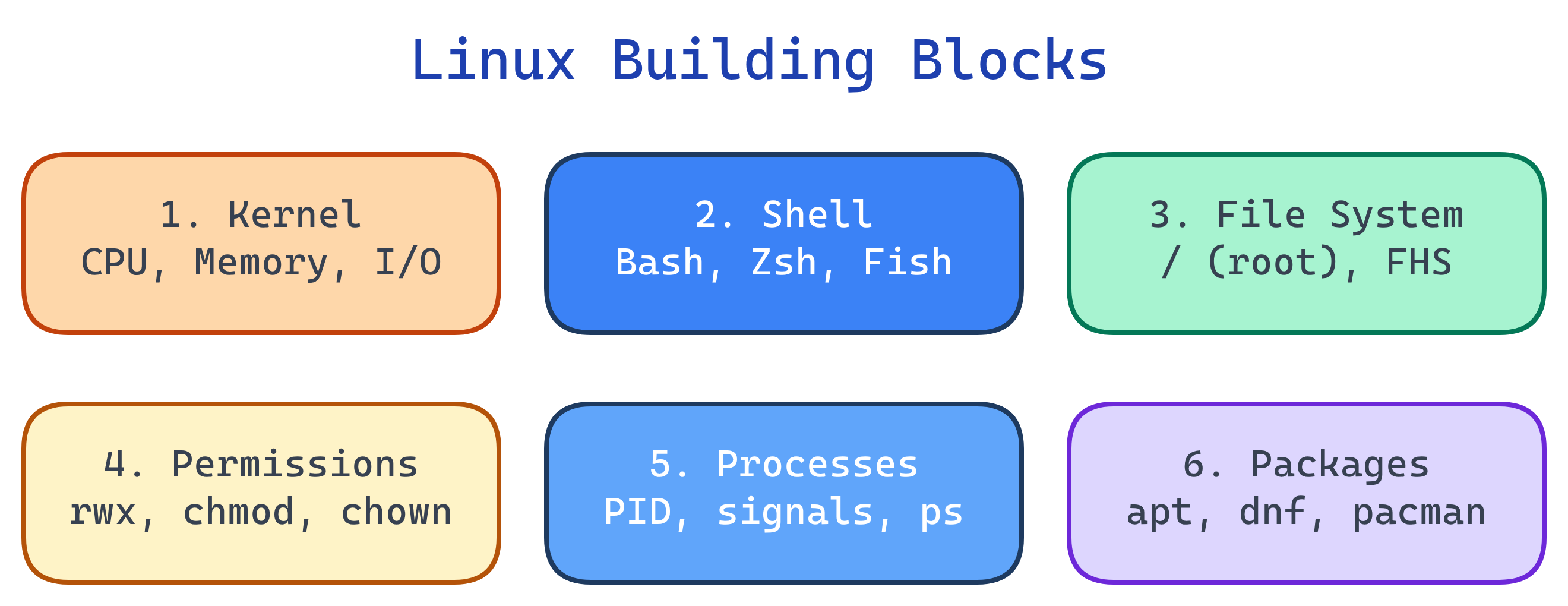
Linux has 6 building blocks: the kernel (talks to hardware), the shell (your command interface), the file system (everything is a file, rooted at /), users & permissions (rwx for owner/group/others), processes (every running program), and package management (apt/dnf installs software). Master these and every Linux system makes sense.
Concept Map
Explain Like I'm 12
Your computer is like an apartment building. The kernel is the building manager — controls electricity (CPU), water (memory), and the elevator (I/O). The shell is the intercom system — you press buttons (type commands) to talk to the manager. The file system is the address system — apartment 1A is /home/you, the mailroom is /var/mail. Permissions are the locks — only the tenant (owner) has keys, guests (group) might get a copy, strangers (others) can't enter. Processes are the tenants — each one gets a room, uses resources, and eventually moves out. Packages are the furniture delivery service — they bring pre-built stuff so you don't have to build everything yourself.
Cheat Sheet
| Concept | What It Does | Key Tools |
|---|---|---|
| Kernel | Manages hardware: CPU scheduling, memory, devices, networking | uname, dmesg, lsmod, /proc |
| Shell | Command interpreter — reads input, runs programs, returns output | bash, zsh, fish, sh |
| File System | Hierarchical tree rooted at / — "everything is a file" | ls, cd, find, mount, df |
| Users & Permissions | Access control: owner/group/others with read/write/execute | chmod, chown, useradd, /etc/passwd |
| Processes | Running programs — each has a PID, state, priority | ps, top, htop, kill, systemctl |
| Package Management | Install, update, and remove software from repositories | apt, dnf, pacman, apk |
The Building Blocks
1. The Kernel
The kernel is the core of the operating system. It's the only software that talks directly to hardware. Everything else — your shell, your apps, Docker — makes system calls to ask the kernel to do things.
# Check your kernel version
uname -r
# 6.5.0-44-generic

# View kernel messages (hardware detection, drivers)
dmesg | tail -20

# See loaded kernel modules (drivers)
lsmod | head -10

# View CPU info through the /proc virtual filesystem
cat /proc/cpuinfo | head -10| Kernel Responsibility | What It Manages |
|---|---|
| Process scheduling | Which program gets CPU time and when |
| Memory management | Virtual memory, page tables, swap |
| Device drivers | Talking to hardware (disk, network, GPU) |
| File systems | ext4, XFS, Btrfs — how data is stored on disk |
| Networking | TCP/IP stack, sockets, routing |
| Security | User isolation, namespaces, cgroups, SELinux |
2. The Shell
The shell is a program that reads commands, interprets them, and asks the kernel to execute them. It's also a programming language — you can write loops, conditionals, and functions.
# Check your current shell
echo $SHELL
# /bin/bash

# List available shells
cat /etc/shells

# Shell features: variables, pipes, redirection
NAME="Linux"
echo "Hello, $NAME!"                    # Variables
ls -la | grep ".txt" | wc -l           # Pipes (chain commands)
echo "log entry" >> app.log            # Redirection (append to file)
cat /dev/null > file.txt # Truncate file| Shell | Default On | Key Feature |
|---|---|---|
| Bash | Most Linux distros | Universal, POSIX-compliant, scripting standard |
| Zsh | macOS | Better autocomplete, plugins (Oh My Zsh) |
| Fish | — | Syntax highlighting, autosuggestions out of the box |
| sh (dash) | Scripts (/bin/sh) | Minimal, fast, POSIX strict |
#!/bin/bash (or #!/usr/bin/env bash) — the shebang line tells the system which interpreter to use. Without it, the script might run with a different shell and break.3. File System Hierarchy
In Linux, everything is a file — regular files, directories, devices, even processes (/proc). The entire system is a single tree rooted at /.
# Key directories
/           # Root of the entire filesystem
/home       # User home directories (/home/alice)
/etc        # System configuration files
/var        # Variable data: logs, databases, mail
/tmp        # Temporary files (cleared on reboot)
/usr        # User programs and libraries
/bin        # Essential binaries (ls, cp, mv)
/sbin       # System binaries (iptables, fdisk)
/dev        # Device files (disks, terminals)
/proc       # Virtual filesystem for process info
/opt # Optional/third-party software/sys, send data to a printer via /dev/lp0, and check process memory from /proc/[pid]/status — all using the same file operations (read, write, cat).4. Users & Permissions
Every file has an owner, a group, and three permission types: read (r=4), write (w=2), execute (x=1).
# Read permissions: -rwxr-xr--
#  type | owner | group | others
#  -    | rwx   | r-x   | r--
#       | 7     | 5     | 4       = chmod 754

# Change permissions
chmod 755 script.sh       # rwxr-xr-x (owner can do all, others read+execute)
chmod u+x script.sh       # Add execute for owner
chmod go-w file.txt       # Remove write from group and others

# Change ownership
chown alice:developers project/   # Change owner and group
chown -R alice: project/ # Recursive, group same as ownerchmod 777 in production — it gives everyone read, write, and execute access. Use the principle of least privilege: only grant what's needed. For web files, 644 (files) and 755 (directories) is typical.5. Processes
Every running program is a process with a unique PID. Processes have a parent (the process that started them), a state, and resource usage.
# List processes
ps aux                    # All processes, detailed
ps aux | grep nginx       # Find specific process
top                       # Live process monitor (q to quit)
htop                      # Better interactive monitor

# Process lifecycle
./script.sh &             # Run in background (returns PID)
jobs                      # List background jobs
fg %1                     # Bring job 1 to foreground
kill 1234                 # Send SIGTERM (graceful stop)
kill -9 1234 # Send SIGKILL (force kill)kill PID (SIGTERM) before kill -9 PID (SIGKILL). SIGTERM lets the process clean up (close files, save state). SIGKILL terminates immediately without cleanup — use it only as a last resort.6. Package Management
Package managers install software from repositories (online collections of pre-built packages) and handle dependencies automatically.
# Debian/Ubuntu (apt)
sudo apt update                    # Refresh package index
sudo apt install nginx             # Install a package
sudo apt upgrade                   # Upgrade all packages
sudo apt remove nginx              # Remove (keep config)
sudo apt autoremove                # Clean unused dependencies

# RHEL/Fedora (dnf)
sudo dnf install httpd
sudo dnf update
sudo dnf remove httpd

# Search for packages
apt search "web server"
dnf search "web server"sudo apt update before sudo apt install — the first command refreshes the package index (what's available and the latest versions). Without it, you might install outdated packages or get "package not found" errors.Test Yourself
What does the Linux kernel actually do? Name 3 of its responsibilities.
What does chmod 644 file.txt mean in terms of permissions?
6 = rw- (read+write for owner), 4 = r-- (read-only for group), 4 = r-- (read-only for others). In symbolic form: -rw-r--r--. The owner can read and modify the file, everyone else can only read it. This is the standard permission for regular files.What is the difference between SIGTERM and SIGKILL?
What does "everything is a file" mean in Linux?
/dev/sda), process info (/proc/1/status), kernel settings (/sys), and even network sockets. This means you can use the same tools (cat, read, write) to interact with hardware, processes, and data.Why should you run apt update before apt install?
apt update downloads the latest package index from the repositories — it tells apt what packages exist and their current versions. Without it, apt uses a stale local index, so you might install outdated versions or get "package not found" errors for recently added packages.