Advanced Git
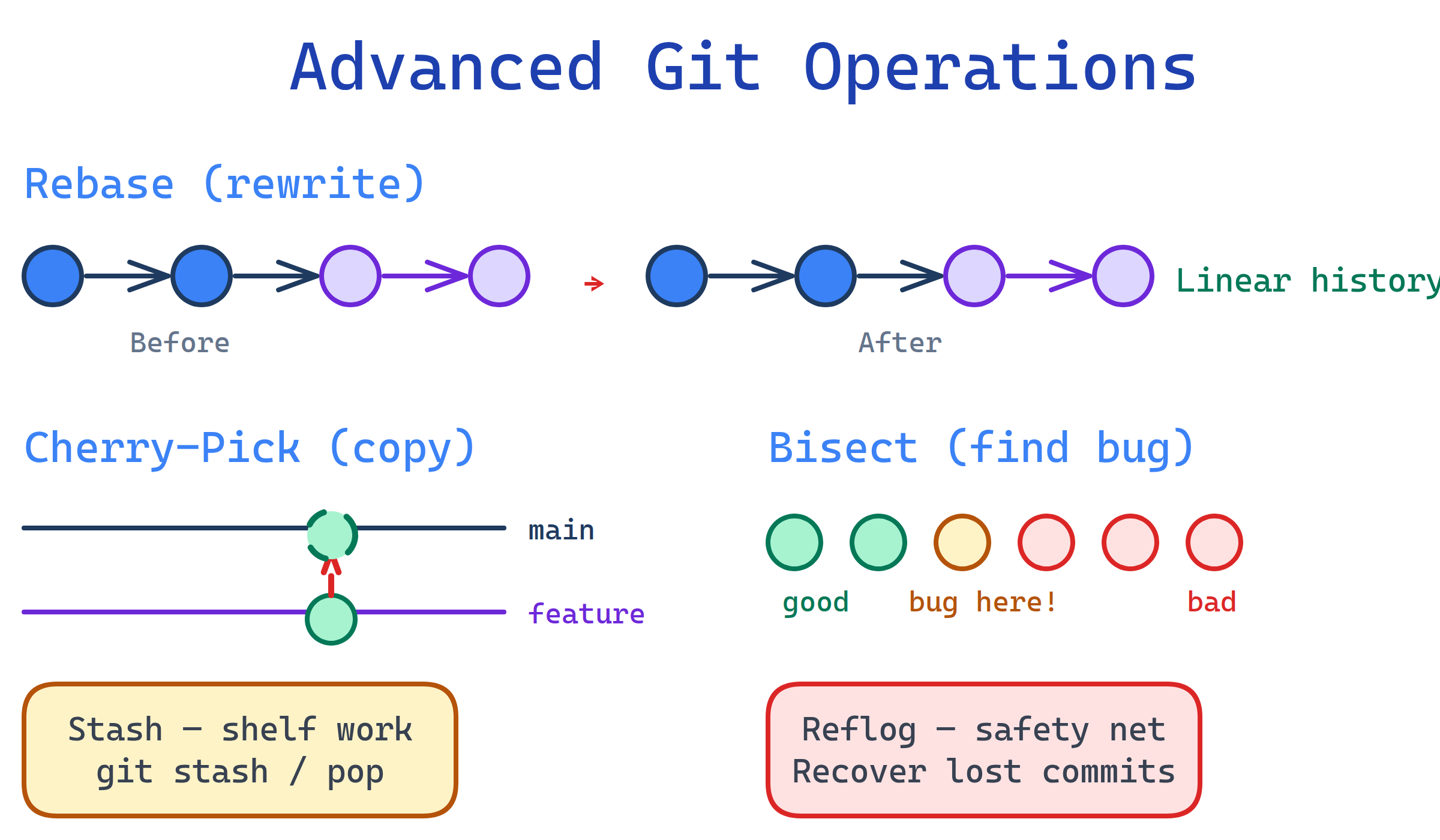
Interactive rebase rewrites local history (squash, reorder, edit commits). Cherry-pick copies a single commit between branches. Bisect binary-searches for the commit that broke things. Reflog is your safety net — it records every HEAD movement so you can recover "lost" work. Stash shelves uncommitted changes temporarily.
Explain Like I'm 12
Imagine your project history is a stack of photos in an album. Rebase lets you rearrange, combine, or remove photos. Cherry-pick is photocopying one picture from a friend's album into yours. Bisect is like a guessing game — "is the bug before or after this photo?" — to find exactly when something went wrong.
Reflog is a secret diary that remembers every photo you ever looked at, even ones you thought you deleted. And stash is a drawer where you temporarily hide your unfinished work so you can do something else, then pull it back out later.
Advanced Git Operations Overview
Interactive Rebase
git rebase -i lets you rewrite your local commit history before sharing it. You can reorder, squash, edit, split, or drop commits — giving you a clean, readable history.
Rebase Commands
| Command | What It Does |
|---|---|
pick | Keep the commit as-is |
reword | Keep the commit but change the message |
squash | Combine this commit with the previous one (keeps both messages) |
fixup | Like squash, but discards this commit's message |
edit | Pause rebase at this commit so you can amend it |
drop | Remove the commit entirely |
Example: Squash 3 WIP Commits Into 1
# You have 3 messy commits on your feature branch:
#   a1b2c3d WIP: start login form
#   d4e5f6a WIP: fix typo
#   g7h8i9j WIP: add validation

# Rebase the last 3 commits interactively
git rebase -i HEAD~3

# Git opens your editor with:
#   pick a1b2c3d WIP: start login form
#   pick d4e5f6a WIP: fix typo
#   pick g7h8i9j WIP: add validation

# Change to:
#   pick a1b2c3d WIP: start login form
#   fixup d4e5f6a WIP: fix typo
#   fixup g7h8i9j WIP: add validation

# Save and close — Git combines all 3 into one clean commit
# Then amend the message:
git commit --amend -m "feat: add login form with validation"
Example: Reorder Commits
# Swap the order of commits — just rearrange the lines in the editor:
#   pick g7h8i9j Add validation     (moved up)
#   pick a1b2c3d Start login form   (moved down)
#   pick d4e5f6a Fix typo

# Git replays the commits in the new orderRebase vs Merge
Both integrate changes from one branch into another, but they do it differently:
| Aspect | Merge | Rebase |
|---|---|---|
| History | Non-linear — preserves branch topology with a merge commit | Linear — replays commits on top of the target branch |
| Commit SHAs | Original SHAs preserved | New SHAs created (history is rewritten) |
| Conflicts | Resolve once during merge | May resolve at each replayed commit |
| Traceability | Merge commit shows when integration happened | No merge commit — looks like you worked sequentially |
| Safe on shared branches? | Yes — never rewrites history | No — only safe on local/unpushed branches |
| Best for | PRs, shared branches, release merges | Local cleanup before opening a PR |
# Rebase workflow: update your feature branch with latest main
git switch feature/auth
git fetch origin
git rebase origin/main
# If conflicts arise, fix them, then:
git add .
git rebase --continue
# Repeat until all commits are replayed

# Merge workflow: integrate feature into main
git switch main
git merge feature/auth
# Creates a merge commit preserving the branch historymain, then use merge (via PR) to bring the feature into main. This gives you a clean history and a traceable merge point.Cherry-Pick
git cherry-pick applies a specific commit from one branch onto your current branch — without merging the entire source branch. It creates a new commit with the same changes but a different SHA.
Basic Cherry-Pick
# Find the commit SHA you want
git log --oneline develop
# Output:
#   f4a9b12 fix: patch null pointer in auth module
#   c3d8e56 feat: add dashboard charts
#   a1b2c3d refactor: extract helper functions

# Apply just the bug fix to main
git switch main
git cherry-pick f4a9b12
# Creates a new commit on main with the same diff
Cherry-Pick Use Case: Hotfix from Develop to Main
# Critical bug was fixed on develop but you need it on main NOW
git switch main
git cherry-pick f4a9b12

# Cherry-pick multiple commits (in order)
git cherry-pick a1b2c3d f4a9b12

# Cherry-pick without auto-committing (stage changes only)
git cherry-pick --no-commit f4a9b12
# Review the changes, then commit manually
git commit -m "hotfix: backport auth null pointer fix from develop"
Handling Cherry-Pick Conflicts
# If cherry-pick hits a conflict:
git cherry-pick f4a9b12
# CONFLICT (content): Merge conflict in src/auth.js

# Fix the conflict in your editor, then:
git add src/auth.js
git cherry-pick --continue

# Or abort if you change your mind:
git cherry-pick --abortgit log. Use cherry-pick sparingly; prefer merging whole branches when possible.Git Bisect
git bisect performs a binary search through your commit history to find the exact commit that introduced a bug. Instead of checking every commit one-by-one, it halves the search space each step — finding the culprit in O(log n) steps.
Step-by-Step Workflow
# Step 1: Start bisect
git bisect start

# Step 2: Mark the current (broken) commit as bad
git bisect bad

# Step 3: Mark a known good commit (e.g., last week's release tag)
git bisect good v2.3.0

# Git checks out a commit halfway between good and bad
# Bisecting: 32 revisions left to test after this (roughly 5 steps)

# Step 4: Test the code. If the bug is present:
git bisect bad

# If the bug is NOT present:
git bisect good

# Git narrows the range and checks out the next midpoint
# Repeat steps 4 until Git identifies the first bad commit:
# f4a9b12 is the first bad commit
# commit f4a9b12
# Author: alice <[email protected]>
# Date: Mon Apr 6 14:23:01 2026 -0700
#     refactor: change auth token parsing

# Step 5: Done! Reset HEAD back to where you started
git bisect reset
Automated Bisect with a Test Script
# Run bisect automatically — Git runs your script at each step
# Exit code 0 = good, non-zero = bad
git bisect start HEAD v2.3.0
git bisect run npm test

# Or with a custom script:
git bisect run ./scripts/check-bug.sh

# Git tests each midpoint automatically and reports the culpritReflog
git reflog records every time HEAD moves — commits, checkouts, rebases, resets, merges. It's Git's local safety net that lets you recover "lost" commits even after a destructive operation like git reset --hard.
Viewing the Reflog
# Show the reflog (most recent first)
git reflog
# Output:
#   a1b2c3d HEAD@{0}: commit: feat: add dashboard
#   f4a9b12 HEAD@{1}: rebase (finish): returning to refs/heads/feature
#   c3d8e56 HEAD@{2}: rebase (pick): refactor auth module
#   9e8d7c6 HEAD@{3}: reset: moving to HEAD~3
#   b2c3d4e HEAD@{4}: commit: WIP: broken experiment

# Each entry shows: SHA, reflog index, action, description
Recovering a "Lost" Commit After Reset
# Oops — you accidentally reset and lost 3 commits
git reset --hard HEAD~3

# Don't panic! Find the lost commit in reflog
git reflog
#   9e8d7c6 HEAD@{0}: reset: moving to HEAD~3
#   a1b2c3d HEAD@{1}: commit: feat: add dashboard     <-- there it is!

# Recover by resetting back to that SHA
git reset --hard a1b2c3d
# All 3 commits are back!

# Or create a new branch from the lost commit
git branch recovered-work a1b2c3d
Recovering After a Bad Rebase
# You rebased and the result is a mess
git reflog
#   c3d8e56 HEAD@{0}: rebase (finish): returning to refs/heads/feature
#   f4a9b12 HEAD@{1}: rebase (start): checkout main
#   a1b2c3d HEAD@{2}: commit: feat: last good state    <-- before rebase

# Go back to the pre-rebase state
git reset --hard a1b2c3dGit Stash
git stash temporarily saves your uncommitted changes (both staged and unstaged) and reverts your working directory to a clean state. Think of it as a clipboard for in-progress work.
Basic Stash Workflow
# You're working on a feature but need to switch branches
git stash
# Saved working directory and index state WIP on feature: a1b2c3d

# Your working directory is now clean — switch branches freely
git switch main
# ... do urgent work, commit ...

# Switch back and restore your stashed changes
git switch feature/auth
git stash pop
# Changes are restored and the stash entry is removed
Managing Multiple Stashes
# Stash with a descriptive message
git stash push -m "WIP: login form validation"

# List all stashes
git stash list
# stash@{0}: On feature/auth: WIP: login form validation
# stash@{1}: WIP on main: fix header layout

# Apply a specific stash (without removing it from the list)
git stash apply stash@{1}

# Drop a specific stash
git stash drop stash@{1}

# Apply and remove the most recent stash
git stash pop

# Clear all stashes (irreversible!)
git stash clear
Advanced Stash Options
# Stash including untracked files (new files not yet added)
git stash push --include-untracked -m "WIP: new feature with new files"

# Stash only specific files
git stash push -m "stash only config" -- config/settings.yml

# Create a new branch from a stash
git stash branch new-feature stash@{0}
# Checks out the commit where the stash was created,
# creates a new branch, applies the stash, and drops it

# View the diff of a stash
git stash show -p stash@{0}git stash push -m "description" instead of bare git stash. When you have multiple stashes, descriptive messages save you from guessing which stash contains what. Also consider committing WIP work to a branch instead — it's more visible and won't get accidentally cleared.Test Yourself
You have 5 messy WIP commits on your feature branch. How do you combine them into a single clean commit before opening a PR?
git rebase -i HEAD~5. In the editor, keep the first commit as pick and change the rest to fixup (or squash if you want to combine messages). Save and close. Then use git commit --amend to write a clean final message. Only do this on local/unpushed branches.A critical bug was fixed on develop (commit abc1234) and you need it on main immediately — without merging all of develop. What command do you use?
git switch main then git cherry-pick abc1234. This applies just that single commit's changes to main as a new commit. Use --no-commit if you want to review or modify the changes before committing.Your app worked last week but is broken now. There are 200 commits in between. How do you efficiently find which commit broke it?
git bisect start, then git bisect bad (current broken state), then git bisect good <last-known-good-sha>. Git checks out a midpoint commit — test it and mark good or bad. Repeat ~8 times (log2 of 200) until Git identifies the exact culprit commit. Use git bisect run <test-script> to automate the process.You accidentally ran git reset --hard HEAD~3 and lost 3 commits. How do you get them back?
git reflog to find the SHA of the commit before the reset (it will be at HEAD@{1} or similar). Then run git reset --hard <that-sha> to restore your branch to that point. Alternatively, git branch recovered <sha> creates a new branch at the lost commit without moving your current branch. Reflog entries expire after 90 days, so act promptly.You're in the middle of a feature but need to quickly fix a bug on main. How do you save your current work without committing incomplete code?
git stash push -m "WIP: feature description" to shelve your uncommitted changes. Switch to main, fix the bug, commit and push. Then switch back to your feature branch and run git stash pop to restore your in-progress work. Use --include-untracked if you also have new files that aren't yet tracked.Interview Questions
Explain the difference between git merge and git rebase. When would you use each, and what are the risks of rebasing?
A production deployment broke the app but you don't know which commit caused it. Walk through how you'd use git bisect to find the culprit.
git bisect start. (2) git bisect bad to mark the current broken state. (3) git bisect good <tag-or-sha> to mark the last known working commit. (4) Git checks out a midpoint — test it and mark good or bad. (5) Repeat until Git identifies the first bad commit. (6) git bisect reset to return to your original branch. For automation, use git bisect run ./test.sh where the script exits 0 for good and non-zero for bad. With 1,000 commits, bisect finds the answer in ~10 steps.What is the reflog, and how does it differ from git log? Describe a scenario where reflog saves you.
git log shows the commit history of the current branch — reachable commits only. git reflog records every movement of HEAD locally — commits, checkouts, rebases, resets, and more — including commits that are no longer reachable from any branch. Scenario: you run git reset --hard HEAD~5 by mistake, deleting 5 commits. git log won't show them because they're no longer on any branch. But git reflog still has them. You find the SHA at HEAD@{1} and run git reset --hard <sha> to recover everything. Reflog is local-only and entries expire after 90 days (30 days for unreachable objects).Your team lead asks you to "clean up" your feature branch before merging. It has 12 commits including typo fixes and debug logs. What's your approach?
git rebase -i HEAD~12 (or git rebase -i main to rebase all commits since branching). In the editor: (1) drop commits that only add debug logs. (2) fixup typo-fix commits into their parent commits. (3) squash related changes into logical units. (4) reword any commits with unclear messages. The result: 3-4 clean, well-described commits that tell a clear story. Since this is a local/unpushed branch, rewriting history is safe. If already pushed, coordinate with the team or force-push with --force-with-lease (safer than --force).