Git Core Concepts
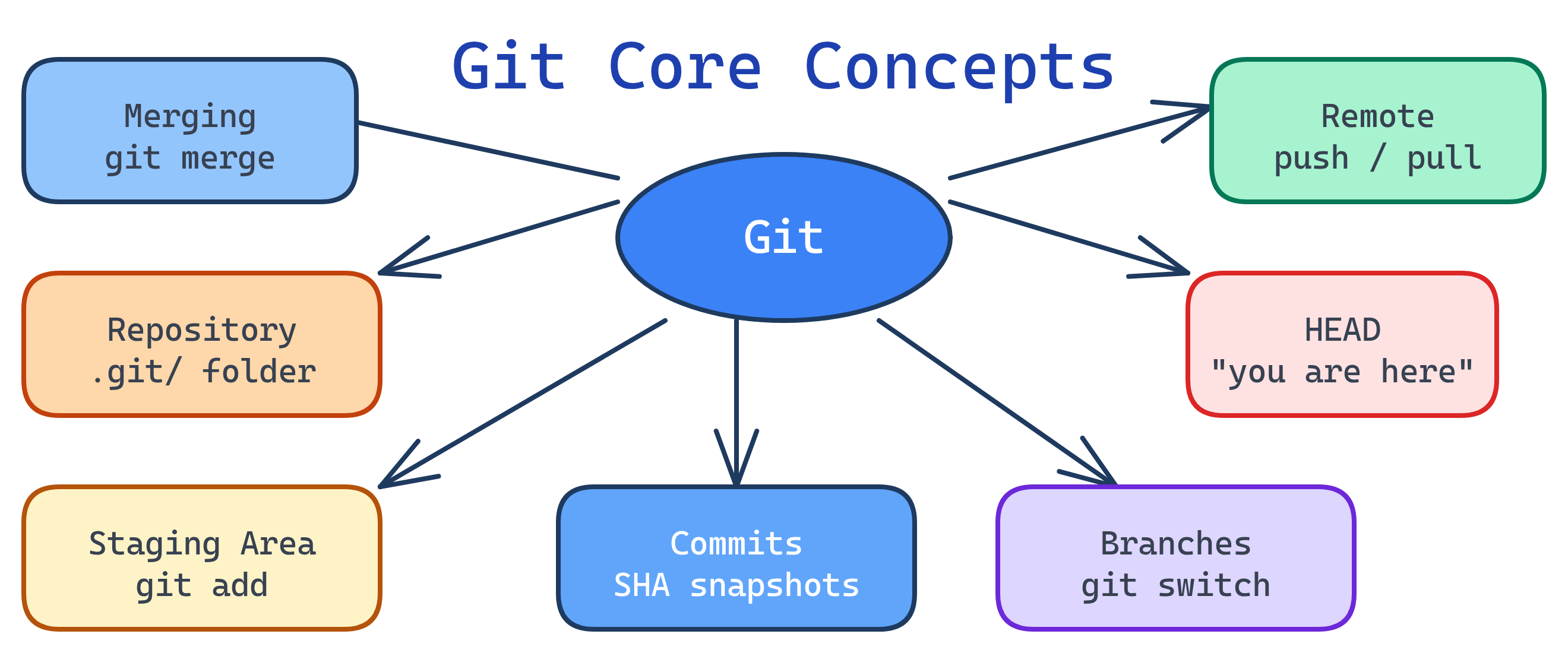
Git has 7 core concepts: repository (your project + history), commits (snapshots), branches (parallel timelines), staging area (what goes in the next commit), HEAD (where you are now), remotes (shared repos like GitHub), and merging (combining branches). Master these and you understand 90% of Git.
Concept Map
Here's how Git's core concepts connect — from your working directory all the way to the remote repository.
Explain Like I'm 12
Think of Git like a video game save system:
- Working directory = the game you're currently playing
- Staging area = choosing which progress to save
- Commit = hitting "Save Game" with a note like "Beat the dragon"
- Branch = starting a second save file to try a different path
- Merge = combining the best parts of both save files
- Remote = uploading your saves to the cloud so friends can play too
Cheat Sheet
| Concept | What It Does | Key Commands |
|---|---|---|
| Repository | Project folder + complete history in .git/ | git init, git clone |
| Staging Area | Select which changes go into the next commit | git add, git reset |
| Commit | Immutable snapshot of staged changes + message | git commit |
| Branch | Lightweight pointer to a commit — parallel timeline | git branch, git switch |
| HEAD | Pointer to current branch/commit — "you are here" | git log --oneline |
| Remote | Shared repo (e.g., GitHub) for collaboration | git push, git pull, git fetch |
| Merge | Combine two branches into one | git merge |
The Building Blocks
1. Repository
A Git repository is your project folder with a hidden .git/ directory that stores the entire history. There are two ways to get one:
# Create a new repo in the current folder
git init

# Clone an existing repo from a remote
git clone https://github.com/user/repo.git
The .git/ folder contains everything: all commits, branches, tags, and configuration. Delete it and you lose the history — the working files stay, but Git forgets everything.
git init --bare) has no working directory — it's just the .git/ contents. Servers and GitHub use bare repos because nobody edits files directly on them.2. Staging Area (Index)
The staging area is Git's "loading dock" — it sits between your working directory and the repository. You choose exactly which changes to include in the next commit.
# Stage specific files
git add src/app.py tests/test_app.py

# Stage all changes in current directory
git add .

# Unstage a file (keep changes in working directory)
git restore --staged src/app.py

# See what's staged vs unstaged
git status3. Commits
A commit is an immutable snapshot of your staged changes, plus metadata: author, timestamp, message, and a pointer to the parent commit(s). Each commit has a unique SHA-1 hash (e.g., a1b2c3d).
# Commit staged changes
git commit -m "Fix null pointer in user login"

# Commit with multi-line message
git commit -m "Add password validation

- Minimum 8 characters
- Require at least one number
- Add unit tests for edge cases"

# See commit history
git log --oneline --graph
# a1b2c3d (HEAD -> main) Fix null pointer in user login
# e4f5g6h Add user registration endpoint
# i7j8k9l Initial commit4. Branches
A branch is just a lightweight pointer to a commit. Creating a branch is instant — Git doesn't copy any files. The default branch is typically called main (or master in older repos).
# Create a new branch
git branch feature/login

# Switch to it (modern syntax)
git switch feature/login

# Create AND switch in one step
git switch -c feature/login

# List all branches (* = current)
git branch
#   feature/login
# * main

# Delete a merged branch
git branch -d feature/logingit switch (Git 2.23+) replaced the overloaded git checkout for branch switching. Use switch for branches and restore for files — they're clearer and safer than checkout which does both.5. HEAD
HEAD is a pointer to your current position in the repository. Usually it points to a branch name (e.g., HEAD → main → a1b2c3d). When you commit, the branch moves forward and HEAD follows.
# See where HEAD points
git log --oneline -1
# a1b2c3d (HEAD -> main) Fix null pointer

# Detached HEAD — pointing directly at a commit (not a branch)
git checkout a1b2c3d
# You're in "detached HEAD" state — commits here won't belong to any branchgit switch -c temp-branch.6. Remotes
A remote is a copy of the repository hosted elsewhere (GitHub, GitLab, a server). The default remote is called origin. You sync your local repo with remotes using push, pull, and fetch.
# See configured remotes
git remote -v
# origin  https://github.com/user/repo.git (fetch)
# origin  https://github.com/user/repo.git (push)

# Push local commits to remote
git push origin main

# Fetch remote changes (doesn't merge)
git fetch origin

# Fetch AND merge remote changes
git pull origin main

# Add a new remote
git remote add upstream https://github.com/original/repo.gitgit fetch downloads remote changes but doesn't touch your working directory. git pull = fetch + merge. Many developers prefer fetch + manual merge so they can review what changed before integrating.7. Merging
Merging combines two branches. Git handles most merges automatically — it only needs human help when the same lines were edited differently on both branches (a merge conflict).
# Merge feature branch into main
git switch main
git merge feature/login
# Fast-forward or merge commit, depending on history

# If there's a conflict:
# 1. Git marks conflicting files
# 2. Edit the files to resolve
# 3. Stage the resolved files
git add src/app.py
# 4. Complete the merge
git commit
A fast-forward merge happens when main hasn't changed since you branched — Git just moves the pointer forward. A merge commit happens when both branches have new commits — Git creates a new commit with two parents.
<<<<<<< HEAD (your changes) / ======= / (their changes) >>>>>>> feature/login. Delete the markers, keep the correct code, then git add and git commit.Test Yourself
What's the difference between the working directory, staging area, and repository?
git add. The repository (.git/) stores all committed snapshots permanently. The flow is: edit → stage → commit.What is a branch in Git, technically?
What's the difference between git fetch and git pull?
git fetch downloads new commits from the remote but doesn't change your working directory or current branch. git pull = git fetch + git merge — it downloads AND integrates remote changes. Fetch is safer because you can inspect what changed before merging.When does a merge conflict happen?
What is HEAD and what does "detached HEAD" mean?
HEAD → main). Detached HEAD means HEAD points directly to a commit hash instead of a branch. Commits made in detached HEAD state aren't on any branch and can be lost when you switch away (unless you create a branch to save them).