Essential Linux Commands
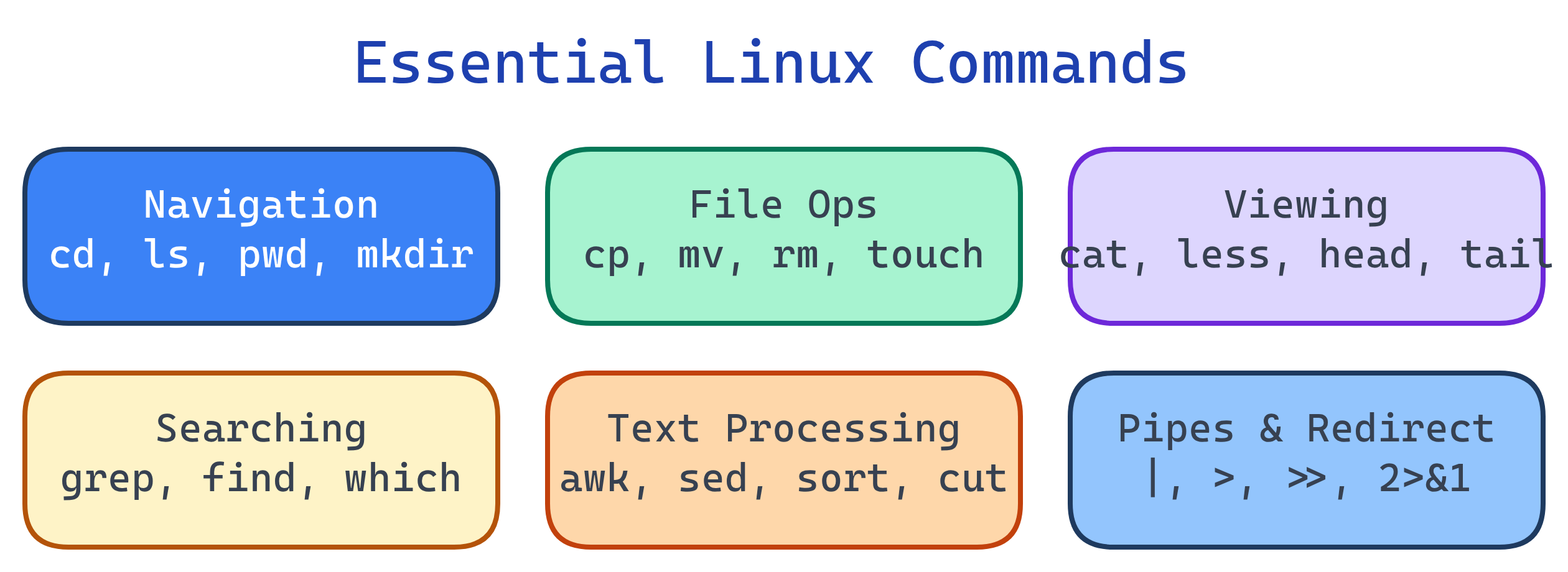
Master these command groups and you can do anything in Linux: navigation (cd, ls, pwd), file ops (cp, mv, rm, mkdir), viewing (cat, less, head, tail), searching (grep, find, which), text processing (awk, sed, sort, cut), and pipes + redirection (|, >, >>, <). Compose small commands into powerful pipelines.
Explain Like I'm 12
Linux commands are like LEGO blocks. Each one does ONE small thing really well. ls lists files. grep finds text. sort sorts lines. The magic is that you can snap them together with pipes (|): ls | grep ".txt" | sort — list files, keep only .txt ones, sort them alphabetically. Simple blocks, powerful combinations.
Command Categories
File Operations
# Copy
cp file.txt backup.txt           # Copy file
cp -r project/ project-backup/   # Copy directory recursively

# Move / Rename
mv old-name.txt new-name.txt     # Rename
mv file.txt /tmp/                # Move to another directory

# Remove
rm file.txt                      # Delete file (no recycle bin!)
rm -r directory/                 # Delete directory + contents
rm -rf directory/                # Force delete (no prompts)

# Create files
touch newfile.txt                # Create empty file (or update timestamp)
echo "hello" > file.txt          # Write (overwrite) to file
echo "world" >> file.txt         # Append to file

# Links
ln -s /path/to/target link-name # Create symbolic link (shortcut)
ln target hard-link-name # Create hard link (same inode)rm -rf is irreversible — there is no recycle bin in Linux. Always double-check the path before running it, especially as root. A mistyped rm -rf / (instead of rm -rf ./) can destroy your entire system.Viewing File Contents
# Show entire file
cat file.txt                     # Print to terminal
cat -n file.txt                  # With line numbers

# Paged viewing (for large files)
less file.txt                    # Scroll with j/k, search with /pattern, q to quit
more file.txt                    # Older pager (less is more!)

# First / Last lines
head -20 file.txt                # First 20 lines
tail -20 file.txt                # Last 20 lines
tail -f /var/log/syslog          # Follow live (stream new lines as they arrive)

# Word / line / byte count
wc -l file.txt                   # Count lines
wc -w file.txt # Count wordstail -f is invaluable for debugging — watch log files in real time. tail -f /var/log/nginx/access.log shows every request as it comes in.Searching
# Search file CONTENTS (grep)
grep "error" app.log                # Lines containing "error"
grep -i "error" app.log             # Case-insensitive
grep -r "TODO" src/                 # Recursive through directory
grep -n "function" app.js           # Show line numbers
grep -c "error" app.log             # Count matches
grep -v "debug" app.log             # Lines NOT matching (invert)

# Search for FILES (find)
find . -name "*.py"                 # Find Python files in current dir
find /var -name "*.log" -size +10M  # Log files larger than 10MB
find . -type d -name "node_modules" # Find directories
find . -mtime -7                    # Modified in last 7 days
find . -name "*.tmp" -delete        # Find and delete

# Locate binaries
which python3                       # Path to executable
whereis nginx                       # Binary, source, and man page
type ls # Is it alias, builtin, or binary?grep -r is great but slow on large codebases. Use ripgrep (rg) or ag (the silver searcher) for 10-100x faster searches — they skip .git, node_modules, and binary files by default.Text Processing
# Sort
sort file.txt                       # Alphabetical sort
sort -n numbers.txt                 # Numeric sort
sort -u file.txt                    # Sort + remove duplicates
sort -t',' -k2 data.csv            # Sort CSV by 2nd column

# Cut (extract columns)
cut -d',' -f1,3 data.csv           # Fields 1 and 3, comma delimiter
cut -d':' -f1 /etc/passwd          # Extract usernames

# Unique
sort file.txt | uniq               # Remove consecutive duplicates
sort file.txt | uniq -c            # Count occurrences

# Sed (stream editor — find & replace)
sed 's/old/new/' file.txt          # Replace first occurrence per line
sed 's/old/new/g' file.txt         # Replace ALL occurrences
sed -i 's/old/new/g' file.txt     # In-place edit (modifies file!)
sed '5d' file.txt                  # Delete line 5

# Awk (column-based processing)
awk '{print $1, $3}' file.txt      # Print columns 1 and 3
awk -F',' '{print $2}' data.csv    # CSV: print column 2
awk '$3 > 100' data.txt            # Rows where column 3 > 100
df -h | awk 'NR>1 {print $5, $6}' # Disk usage: percent and mount
Pipes & Redirection
The pipe (|) sends one command's output as input to the next. Redirection sends output to files.
# Pipes — chain commands
ps aux | grep nginx | grep -v grep      # Find nginx processes
cat access.log | cut -d' ' -f1 | sort | uniq -c | sort -rn | head -10
# ^ Top 10 IPs in access log

# Output redirection
echo "hello" > file.txt          # Overwrite file (stdout)
echo "more" >> file.txt          # Append to file
command 2> errors.log            # Redirect stderr only
command &> all.log               # Redirect stdout + stderr
command > /dev/null 2>&1         # Discard all output (silent)

# Input redirection
sort < unsorted.txt              # Read from file as stdin
wc -l < file.txt                 # Count lines from file

# Here documents (inline input)
cat <<EOF
  Line 1
  Line 2
EOF| Operator | Meaning | Example |
|---|---|---|
| | Pipe stdout to next command's stdin | ls | grep txt |
> | Redirect stdout to file (overwrite) | echo hi > f.txt |
>> | Redirect stdout to file (append) | echo hi >> f.txt |
2> | Redirect stderr to file | cmd 2> err.log |
&> | Redirect both stdout + stderr | cmd &> all.log |
< | Read file as stdin | sort < data.txt |
System Info & Networking
# System info
uname -a                 # Kernel version and architecture
hostname                 # Machine name
uptime                   # How long system has been running
free -h                  # Memory usage (human-readable)
df -h                    # Disk space usage
du -sh /var/log          # Size of a specific directory

# Networking
ip addr                  # Show IP addresses (modern)
ss -tuln                 # Show listening ports (replaces netstat)
curl -I https://example.com  # HTTP headers
wget https://example.com/file.tar.gz  # Download file
ping -c 4 google.com    # Test connectivity
dig example.com          # DNS lookup
traceroute example.com   # Network path
Test Yourself
How would you find the top 5 largest files in /var/log?
find /var/log -type f -exec du -h {} + | sort -rh | head -5 — find all files, get their sizes, sort by size descending (human-readable), take top 5. Alternatively: du -ah /var/log | sort -rh | head -5.What does cat access.log | cut -d' ' -f1 | sort | uniq -c | sort -rn | head do?
What's the difference between > and >> redirection?
> overwrites the file (creates it if it doesn't exist, truncates it if it does). >> appends to the file (creates it if it doesn't exist, adds to the end if it does). Using > when you meant >> destroys existing content!How would you replace all occurrences of "http" with "https" in every .html file under the current directory?
find . -name "*.html" -exec sed -i 's/http:/https:/g' {} + — find all HTML files and run sed in-place on each one. The + batches files for efficiency. On macOS, use sed -i '' (empty backup extension).What does 2>&1 mean in shell redirection?
command > output.log 2>&1 sends both normal output and error messages to output.log. Without it, errors would still print to the terminal.Interview Questions
Write a one-liner to find all processes using more than 1GB of memory.
ps aux --sort=-%mem | awk 'NR==1 || $6 > 1048576' — sort by memory descending, print header line (NR==1) plus rows where RSS (column 6, in KB) exceeds 1GB (1,048,576 KB). Alternatively: ps aux | awk '$6 > 1048576' for just the data.How would you monitor a log file in real-time and only show lines containing "ERROR"?
tail -f /var/log/app.log | grep --line-buffered "ERROR" — tail -f streams new lines as they're written, piped to grep which filters for ERROR. --line-buffered ensures grep outputs immediately instead of buffering.Explain the difference between find and grep. When do you use each?
find searches for files by name, type, size, date, permissions — it navigates the directory tree. grep searches file contents for text patterns. Use find to locate files: find . -name "*.py". Use grep to search inside files: grep -r "def main" *.py. Often combined: find . -name "*.py" -exec grep "import" {} +.